
When PixDazzle is the right way to change image color
PixDazzle applies a look to the whole frame. That fits when you want black and white, a painted or comic style, or a warmer, dreamier atmosphere without opening a layer editor.
Use a different product when you need to paint one object a new hex value, mask a shirt, or match a brand swatch exactly. None of the PixDazzle pages documented here offer per-object color replacement.
Whole-image effects, not spot recoloring
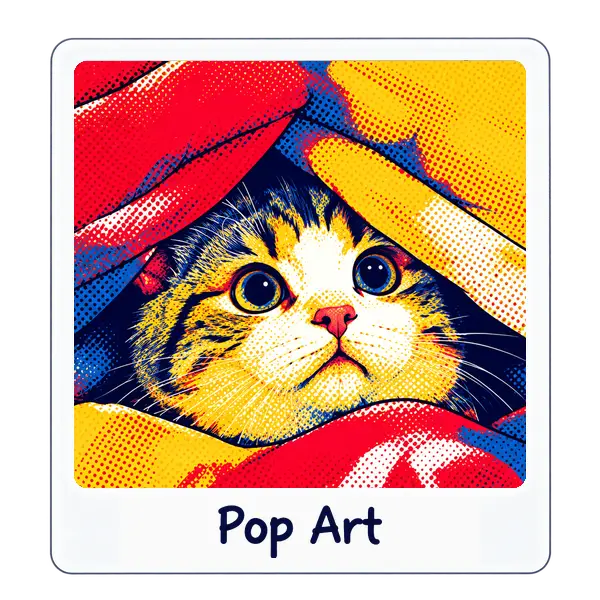
Grayscale can turn a portrait monochrome. Pop Art can push bold graphic color. Neither one changes only the blue shirt while leaving the rest untouched.
Choose an effect or tool for the color change you want
Start from the finish, not from the strongest slider. Removing color is a different job from adding a graphic palette or a glow.
Grayscale Image is under Tools. Pop Art, Cartoonize, Watercolor, Glowing Light, Light Leak, and Reflection are under Effects. Each page has its own controls and presets. Open the one that matches the table, then add your photo.
- Grayscale when you want color gone, not one exact shade swapped.
- Pop Art or Cartoonize when the image should read as illustration.
- Watercolor when the subject should stay recognizable with softer pools of color.
- Glowing Light, Light Leak, or Reflection when the photo needs light more than a full restyle.
| Desired result | Open this page | Good for |
|---|---|---|
| Black and white | Grayscale Image | Portraits, quotes, simple backgrounds |
| Bold illustrated color | Pop Art or Cartoonize | Thumbnails, playful posts |
| Painted look | Watercolor | Invites, headers, art experiments |
| Warmer or dreamier mood | Glowing Light, Light Leak, or Reflection | Travel, products, atmosphere |
Step by step: change the color of a picture in the browser
Keep an untouched copy of the original, especially for campaign assets. PixDazzle only offers a new download from each page.
- Open the effect or Grayscale Image that matches the table above.
- Add a JPG, PNG, or WebP. A well-lit source usually gives the controls more detail to work with.
- Start from a preset when the page offers one, then move sliders in small steps. Faces, logos, and product edges show harsh settings first.
- Compare the preview with the original at the size you will publish. Download PNG, JPEG, or WebP from the panel when it looks right.
Ideas for changing photo colors before you post
Grayscale Image suits a portrait or quote card when color competes with the words. Check contrast so hair, clothing, and backgrounds do not merge.
Glowing Light adds bloom to bright areas. Light Leak lays warm flares across the frame. Reflection mirrors the subject under a glossy or water surface. A travel sunset can feel softer without becoming a different photo.
Cartoonize and Watercolor turn a straight photo into a playful or painted visual. Pop Art fits bold social graphics that need flat color bands.
After the look is set, open Crop Image or Resize Image if the placement needs new dimensions. Compress Image, PNG to JPG, WebP to JPG, and JPG to WebP help when file size or format matters. The resize for social media guide lists common export sizes.
Tips for a cleaner color-changed export
The source photo controls most of the result. A dark, blurry, or heavily compressed file will not gain detail from a filter.
- Start with even lighting when you can. Strong shadows often get heavier after processing.
- Raise effect strength gradually and inspect faces, type, and fine edges at 100% zoom.
- Match dimensions to the channel before you publish. Crop empty space, then resize if the destination names a pixel size.
- Use Compress Image or a format converter when the download is too large. Keep the original in a separate folder with a clear name.
| Check | Why |
|---|---|
| Subject and text still read | Heavy effects hide selling details first |
| Width and height fit the placement | Platforms resize uploads on their own |
| Format suits the site | JPEG for photos, PNG for flat graphics with sharp edges |
| Original is saved elsewhere | You may want a second effect later |