When a circle crop is the wrong file
A circular display throws away the corners of whatever rectangle you give it. That is a problem when small text sits near the edge, when the subject needs a wide setting, or when the destination only accepts a rectangular upload and shows it as a rectangle.
Keep the original rectangular photo in those cases. Crop Image can still trim clutter, using a wide ratio such as 16:9 or Free, without pretending the result is round. The social media image sizes guide covers those rectangular frames.
- Readable type or a logo wordmark that must stay intact.
- A landscape, a group, or a product scene that needs the width.
- A destination that displays the upload as a rectangle.
- A website avatar, where CSS can circle a rectangular file without a second export.
What a circle crop image is, and what Crop Image exports
A file people call a circle crop image is usually one of three things: a square photo that a platform masks into a circle, a rectangular photo that CSS clips into a circle, or a square PNG whose four corners are transparent so the circle is in the file itself. Only the third one is a circular image. Crop Image makes the first kind of file, a rectangle, and it can prepare the second. It does not make the third.
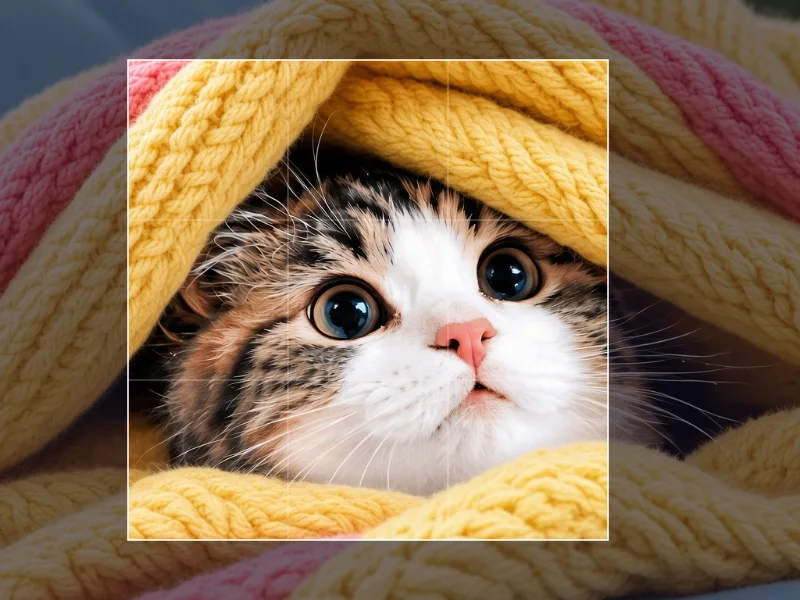
The Shape control lists Free, Original, 1:1, 4:3, 3:2, 16:9, 3:4, 2:3, and 9:16. The page opens on 1:1. The Square preset sets that ratio and Crop size to 100, which is the largest square that fits. Crop size runs from 10 to 100 for those fixed ratios. Horizontal position and Vertical position run from 0 to 100. You move the frame with those sliders. Dragging the frame on the picture is not available.
Some other editors publish a circle or shape mask that writes transparent corners. Treat those as a different tool. If you need a portable PNG with empty corners, use an editor that documents that mask, then open the download on a dark page. A white page hides white corners. Crop Image does not cut that mask.
No round mask in this cropper
A round image cropper that cuts a circle is not what Crop Image is. The download is every pixel inside the rectangular frame, including the corners a circle would hide.
Frame a square for a round profile picture
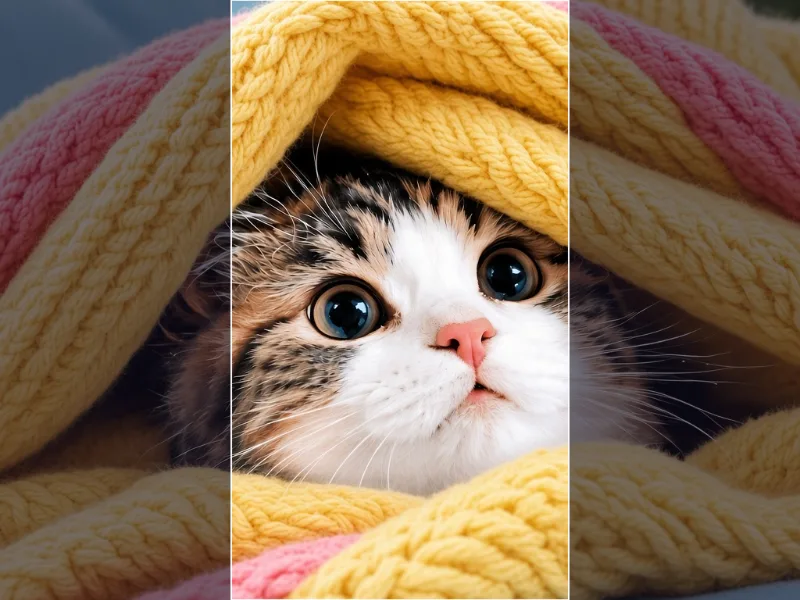
Open Crop Image and add a JPG, PNG, or WebP. Use the clearest original, not a screenshot of an avatar. Choose Square, or set Shape to 1:1. On a wide photo, Crop size 100 uses the full height and Horizontal position slides that square left and right. On a tall photo, the square uses the full width and Vertical position slides it up and down. Position 0 keeps the square at the left or the top. Position 100 keeps it at the right or the bottom. The default is 50, centered.
Lower Crop size when you need margin on more than one side. Leave a little space around hair, a chin, product corners, and the first and last letters of a logo. A face that fills the square looks large in the editor and cramped once a circle clips the corners. Place the eyes in the upper part of the square and keep the chin inside the lower edge, then picture the circle that will cover it: anything in the four corners will disappear.
Rule-of-thirds lines are drawn on the overlay so you can place a face off the exact center. For a small avatar, closer to center is safer, because the circle removes the corners first. Preview is not the avatar size. After you download, look at the file at the size it will actually appear.
- Square preset, or Shape set to 1:1.
- Crop size under 100 when the subject needs air on every side.
- Vertical position toward 0 if a tall portrait is cutting off hair.
- Horizontal position away from 50 if a wide photo puts the subject off center.
Let the page or the platform draw the circle
Many profile photos stay square files. The site draws its own circle on top. Upload the square you framed, then check the live profile if you can. A second mask, a border, or an interface overlay can clip a crop that looked balanced in the editor. Do not expect the upload to gain transparent corners on the way in.
On your own page, CSS can show the same rectangular file as a circle. Give the image a square box, for example 160 by 160 pixels, set object-fit to cover, and set border-radius to 50%. MDN documents border-radius as the property that rounds an element's outer edge, and the CSS Backgrounds and Borders specification defines it. A 50% radius on a square box is a circle. object-fit: cover fills that box without stretching. The file on disk stays a rectangle, which is what you want when the same photo is also used in a rectangular post.
That CSS does not produce a file you can upload elsewhere. Export the square from Crop Image when the avatar has to travel. If the box is not square, a 50% radius makes an oval, so match the width and height before you rely on the circle.
| Need | What to export | Where the circle comes from |
|---|---|---|
| Profile upload | Square from Crop Image | The platform's own mask |
| Avatar on your site | Any rectangle, square is simplest | CSS border-radius 50% on a square box |
| A PNG with empty corners | Not available in Crop Image | An editor that documents a circle mask |
Export the square and check the corners
Crop Image can download PNG, JPEG, or WebP. The download panel says only the area inside the frame is exported, and that area is still a rectangle. PNG is a lossless copy of those pixels. JPEG and WebP compress them. JPEG also paints a white background before it draws, so any transparency that was already in the source is filled. PNG and WebP keep alpha that was already in the file. None of the three formats adds a circular hole.
A JPG saved as PNG is an opaque square. Opening it on a dark background will show four solid corners, which is expected. If a platform then looks square, it is showing the file as a rectangle. If your own page looks square, the border-radius rule is missing or the box is not square. Jagged edges come from enlarging a small export. Crop Image does not resample, so start from a large original and do not scale the avatar up afterward. Resize Image can scale down if a destination asks for a smaller square.
The JPG, PNG, and WebP guide is the longer comparison when you are choosing a format for a site you control. The free browser photo editing guide describes the same crop controls in the context of every tool on the site.
- Clipped hair or letters: lower Crop size, or move Horizontal position and Vertical position, then export again from the original.
- Visible square corners on a website: fix the CSS box. The file was never circular.
- Visible square corners in a downloaded PNG: expected. Crop Image did not cut a circle.
- Soft or jagged avatar: the source was too small, or it was enlarged after the crop.